Mazda Network Required Enable Connectivity Restart MyMazda
The “Mazda Network Required” message can stop you from using connected features in your Mazda. This error usually means your MyMazda app has lost its connection to Mazda servers. You can fix it by enabling connectivity settings and restarting the MyMazda app on your phone. This guide walks you through every step with clear instructions and practical tips. Keep reading to get your Mazda connected services back up and running.
You are trying to use your Mazda connected services, and suddenly you see a message that says “Mazda Network Required. Please Enable Connectivity and Restart MyMazda App.” It is frustrating, right? You just want to start your car remotely or get directions, and instead you get stuck on this error screen. This is a common issue that Mazda owners face, especially after app updates or when phone settings change. The good news is that fixing it is usually simple and fast. In this guide, we will walk you through every step to get your Mazda connected services working again. You will learn what causes this error, how to fix it quickly, and how to prevent it from happening again.
The MyMazda app is the gateway to your Mazda vehicle. It lets you lock doors, start the engine, check fuel levels, and get navigation all from your phone. But when the app loses its connection to Mazda servers, none of these features work. The “Mazda network required” message is your phone telling you that the link between the app and the Mazda system has been broken. Understanding why this happens is the first step to fixing it. Once you know the root cause, you can apply the right solution and get back to using your Mazda connected features without any hassle.
Key Takeaways
- Quick Fix Available: Enabling connectivity and restarting the MyMazda app resolves most network errors in minutes.
- Multiple Causes: The error can stem from app glitches, weak Wi-Fi, outdated software, or incorrect phone settings.
- Step-by-Step Solutions: We cover simple fixes first, then move to advanced troubleshooting steps.
- Prevent Future Issues: Regular app updates and proper network settings keep your Mazda connected services running smoothly.
- Mazda Support Is There When You Need It: If all else fails, Mazda customer service can help you diagnose deeper connectivity problems.
- Connected Services Matter: Features like remote start, navigation, and vehicle alerts depend on a stable Mazda network connection.
📑 Table of Contents
What Does “Mazda Network Required” Mean?
When you see the “Mazda Network Required” error, it means your MyMazda app cannot reach the Mazda servers. Think of it like trying to make a phone call, but there is no signal. The app is ready to work, but the network connection is missing. This error can appear on your phone screen or on your Mazda infotainment display. It blocks access to features like remote start, vehicle diagnostics, and real-time navigation updates.
The error usually shows up in three main situations. First, when your phone has a weak or unstable internet connection. Second, when the MyMazda app has a temporary glitch after an update. Third, when your Mazda vehicle’s connectivity module has not been activated properly. Each of these scenarios has a clear fix, and we will cover them all in detail below.
Why Connectivity Matters for Mazda Owners
Mazda connected services rely on a steady internet connection. Your phone talks to the Mazda cloud servers, and the servers talk to your vehicle. If any part of this chain breaks, you lose access to connected features. This is why enabling connectivity is so important. Without it, your MyMazda app is just a blank screen with no real purpose. Keeping your network settings correct ensures that your Mazda stays connected no matter where you are.
Why Your MyMazda App Keeps Losing Connectivity
Before you jump into fixes, it helps to understand what causes the connectivity problem in the first place. Several factors can trigger the “Mazda network required” message. Knowing the cause helps you pick the right solution quickly.
Weak or Unstable Wi-Fi and Mobile Data
The most common reason for this error is a poor internet connection. If your phone is on a weak Wi-Fi signal or your mobile data is slow, the MyMazda app cannot communicate with Mazda servers. This happens often in parking garages, rural areas, or buildings with thick walls that block signals. Even a brief drop in connectivity can trigger the error message.
Outdated MyMazda App Version
Mazda regularly updates the MyMazda app to improve performance and fix bugs. If you are running an older version, it may not connect properly to current Mazda servers. App updates often include fixes for connectivity issues, so keeping your app up to date is essential. An outdated app is one of the top reasons Mazda owners see the network required error.
Phone Settings Blocking the App
Sometimes your phone settings are the culprit. Features like battery saver mode, background data restrictions, or VPN apps can block the MyMazda app from connecting to the internet. Android and iOS both have settings that limit what apps can do in the background. If these settings are too aggressive, they can cut off your Mazda connectivity without you even noticing.
Mazda Vehicle Software Needs an Update
Your Mazda vehicle itself may need a software update. Mazda releases over-the-air updates that improve the connectivity module in your car. If your vehicle software is out of date, it may not be able to communicate properly with the MyMazda app. This is less common but still an important cause to check.
Step-by-Step Fix: Enable Connectivity and Restart MyMazda
Now that you know the common causes, let us get into the fixes. Follow these steps in order, and most users find that their Mazda network error is resolved by step three.
Step 1: Check Your Internet Connection
Start with the basics. Make sure your phone has a working internet connection. Open your web browser and try visiting any website. If the page loads, your connection is fine. If not, switch to mobile data or connect to a stronger Wi-Fi network. A stable connection is the foundation of all Mazda connected services.
Here are quick checks you can do right now:
- Turn off Wi-Fi and use mobile data to see if that fixes the issue.
- Move to a different location with better signal strength.
- Restart your phone to refresh the network connection.
- Toggle airplane mode on and off to reset your cellular connection.
Step 2: Enable Connectivity on Your Phone
Next, make sure your phone allows the MyMazda app to use the internet. On both Android and iPhone, you can check these settings easily.
For iPhone users, go to Settings, then Cellular, and make sure the MyMazda app is turned on. Also check that Low Data Mode is off for the MyMazda app. On Android, go to Settings, then Apps, find MyMazda, and check the Mobile Data and Wi-Fi permissions. Make sure Background Data is allowed too.
These settings control whether the app can connect to the internet when you are not actively using it. If background data is restricted, the MyMazda app cannot check for updates or send commands to your Mazda when the screen is off. Enabling these permissions is a quick fix that solves the problem for many users.
Step 3: Restart the MyMazda App
Once your connectivity is working, restart the MyMazda app. Close it completely and open it again. On iPhone, swipe up from the bottom and swipe the app card away. On Android, go to your recent apps and swipe the MyMazda app off the screen. Then reopen the app and log in.
Restarting the app clears temporary glitches and forces it to reconnect to Mazda servers. This simple step fixes the network required error in most cases. After the app restarts, check if you can now access your vehicle status, remote start, and other connected features.
Step 4: Update the MyMazda App
If restarting does not work, check for app updates. Go to the App Store on iPhone or the Google Play Store on Android. Search for MyMazda and see if an update is available. Install any pending updates and then restart the app again. Mazda releases updates frequently to address bugs and improve Mazda network stability.
Step 5: Clear App Cache and Data
For Android users, clearing the app cache can resolve stubborn connectivity issues. Go to Settings, then Apps, find MyMazda, and tap Storage. Hit Clear Cache first. If that does not work, you can also Clear Data, but be aware this will log you out and reset app preferences. You will need to log back in with your Mazda account.
On iPhone, you can delete and reinstall the MyMazda app. This achieves the same result as clearing cache and data on Android. Simply hold the app icon, tap Remove App, and then reinstall it from the App Store.
Step 6: Restart Your Mazda Vehicle
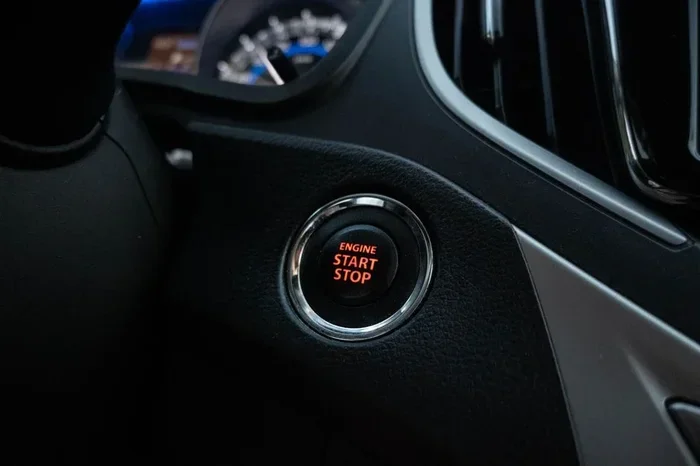
Sometimes the issue is on the vehicle side. Turn off your Mazda, remove the key or press the start button to shut it down completely, and wait 30 seconds. Then start the car again. This refreshes the vehicle’s connectivity module and can resolve network errors that are stored in the car’s system.
Common Mazda Connectivity Problems and Solutions
Even after following the steps above, some users still face connectivity challenges. Here are the most common problems and how to solve them.
MyMazda App Shows “Network Required” After a Software Update
Mazda software updates can temporarily disrupt connectivity. After updating your vehicle or the app, give it a few minutes to re-establish the connection. If the error persists, restart both your phone and your vehicle. This forces all systems to reconnect fresh.
Mazda Wi-Fi Hotspot Not Working
If your Mazda Wi-Fi hotspot is not broadcasting a signal, check that the hotspot feature is turned on in your vehicle settings. Also make sure your Mazda has an active data plan. Some Mazda models require a subscription for hotspot access. Contact your Mazda dealer if you are unsure about your data plan status.
Remote Start and Vehicle Alerts Not Working
These features depend on a strong Mazda network connection. If they are not working, check that your phone has a stable data connection and that the MyMazda app has permission to send notifications. You can do this by going to phone notification settings and enabling alerts for the MyMazda app.
Mazda Bluetooth Connectivity Issues
Bluetooth problems are different from network issues, but they can feel similar. If your phone cannot connect to your Mazda via Bluetooth, delete the phone from the Mazda system and pair it again. Also check that Bluetooth is turned on and that your phone is within range of the vehicle.
How to Keep Your Mazda Connected at All Times
Prevention is always better than fixing. Once you get your Mazda connected services working again, these tips will help you avoid the “network required” error in the future.
Keep the MyMazda App Updated
Turn on automatic updates for the MyMazda app in your app store settings. This ensures you always have the latest version with the best connectivity fixes. Mazda pushes updates regularly to improve the Mazda network experience for all users.
Maintain a Stable Data Connection
Use a reliable mobile data plan or connect to a strong Wi-Fi network whenever possible. If you travel frequently, make sure your carrier has good coverage in the areas you visit. A weak signal leads to dropped connections, which triggers the network required error.
Regularly Check App Permissions
Every few weeks, check that the MyMazda app still has the right permissions. Phone updates can sometimes reset app permissions. Go to your phone settings and verify that the MyMazda app can use mobile data, Wi-Fi, and background data.
Restart Your MyMazda App Weekly
Make it a habit to restart the MyMazda app once a week. This clears out temporary files and refreshes the connection to Mazda servers. It takes only a few seconds and keeps everything running smoothly.
Stay Informed About Mazda Connected Services
Mazda offers various connected services plans. Make sure your plan is active and up to date. You can check your plan status by logging into the MyMazda app and going to Account Settings. An expired plan can cause connectivity errors even if your network is working fine.
When to Contact Mazda Support
If you have tried all the steps above and the “Mazda network required” error still appears, it is time to contact Mazda support. Persistent connectivity issues can sometimes indicate a deeper problem with your vehicle’s connectivity module or your Mazda account settings.
You can reach Mazda customer service through the MyMazda app, by phone, or at your local Mazda dealership. Have your vehicle identification number ready when you contact them. This helps the support team pull up your vehicle details quickly. They can check your Mazda network status, verify your data plan, and even push a software update to your vehicle if needed.
Most Mazda dealerships have dedicated service teams for connected car issues. They can run diagnostics on your vehicle’s connectivity module and identify any hardware problems. Do not hesitate to reach out if the error persists. Mazda support is there to help you get the most out of your connected Mazda experience.
Conclusion
The “Mazda Network Required” error is frustrating, but it is almost always fixable. By enabling connectivity, restarting the MyMazda app, and checking your network settings, you can get your Mazda connected services back up and running in just a few minutes. Remember to keep your app updated, maintain a stable data connection, and check your permissions regularly. These simple habits prevent most connectivity issues before they start. Your Mazda is designed to keep you connected, and with the right steps, it will. If you ever get stuck, Mazda support is just a call or message away. Now go out there and enjoy all the features your Mazda has to offer.
Frequently Asked Questions
Why does my Mazda keep saying network required?
This error usually happens when the MyMazda app loses its connection to Mazda servers. It can be caused by weak Wi-Fi, restricted phone permissions, or an outdated app version. Enabling connectivity and restarting the app typically fixes the issue right away.
How do I enable connectivity on MyMazda?
Go to your phone settings and check that the MyMazda app has permission to use mobile data and Wi-Fi. On iPhone, go to Settings, then Cellular, and turn on the MyMazda app. On Android, go to Settings, then Apps, find MyMazda, and enable Mobile Data and Background Data permissions.
What should I do if restarting the MyMazda app does not fix the error?
If restarting does not work, try updating the app to the latest version. Then clear the app cache on Android or delete and reinstall the app on iPhone. Also check your internet connection and restart your vehicle to refresh the connectivity module.
Can a weak Wi-Fi signal cause the Mazda network required error?
Yes, a weak or unstable Wi-Fi signal is one of the most common causes. The MyMazda app needs a strong internet connection to communicate with Mazda servers. Switching to mobile data or moving to a location with better signal strength often resolves the error quickly.
Do I need a Mazda data plan for connected services to work?
Some Mazda connected services require an active data plan, especially features like the Wi-Fi hotspot and real-time navigation. Check your Mazda plan status in the MyMazda app under Account Settings. If your plan has expired, renewing it may restore your connectivity.
How often should I update the MyMazda app?
You should update the MyMazda app whenever a new version is available. Turning on automatic app updates in your app store is the easiest way to stay current. Mazda releases updates frequently to fix bugs and improve Mazda network connectivity.